
Thesis and Dissertation Forms and Instructions
Thesis and Dissertation Forms:
- School of Art:
- School of Art:
- School of Fashion:
- School of Fashion:
- School of Music:
- School of Music:
- School of Music:
- School of Music:
-
COTA Thesis and Dissertation Topic Approval Form Instructions
COTA Thesis and Dissertation Topic Approval Form Instructions
- Start here /artscollege/information-graduate-students
 鈥�
鈥� - Click on the link to the appropriate form
 鈥�
鈥� Fill in the names and email addresses of your Thesis/Dissertation committee members and Advisor/Director. Make sure that you use the correct kent.edu email when entering your committee members.

There will be an opportunity to add additional committee members and a Co-Advisor or Co-Director on the next page. Click Continue.- Enter the Date of your Final Exam
- Enter your Major Program
- Enter the Term
- Enter the Title of Proposed Thesis/Dissertation
- Attach Abstract file
- Indicate if you used human subjects and the date of IRB approval

- Add a third and fourth committee member if needed. Add a Co-Advisor or Co-Director if needed.
- Click Next
Click Next again on the next page, nothing needs to be filled here.

E-Sign the form and you will be to view PDF
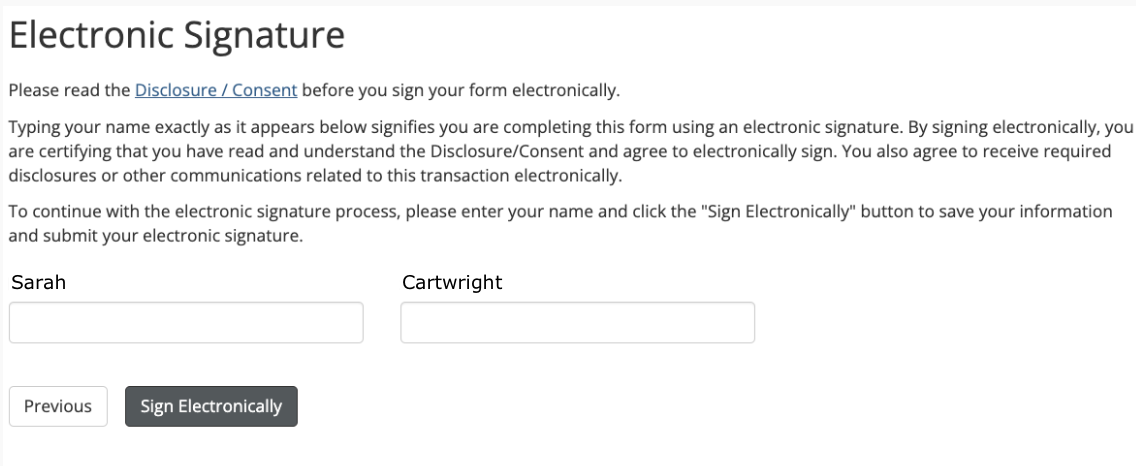
- Start here /artscollege/information-graduate-students
-
COTA Thesis and Dissertation Final Defense Form Instructions
COTA Thesis and Dissertation Final Defense Form Instructions
- Start here /artscollege/information-graduate-students
- Click on the link to the appropriate form (topic approval or final defense.
- Fill in the names and email addresses of your Thesis/Dissertation Moderator, Committee members, Faculty Rep, and Advisor/Director. Make sure that you use the correct kent.edu email when entering your committee members.There will be an opportunity to add additional committee members and a Co-Advisor or Co-Director on the next page. Click Continue.
- Enter your Major Program
- Choose the Term
Enter the Exact Title of Thesis/Dissertation
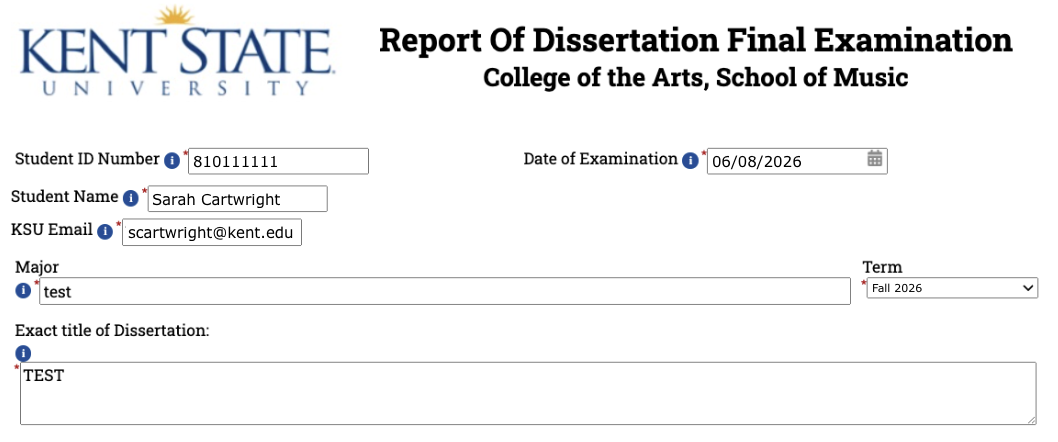
- Add a third and/or fourth committee member if needed. Add a Co-Advisor or Co-Director if needed.

- Click Next
- E-Sign the form and you will be to view a PDF
-
Graduate Form Faculty Instructions
Graduate Form Faculty Instructions
- When the student initiates the form, they list their committee members and their Advisor/co-advisor. The Graduate Coordinator, School Director, and Associate Dean are already coded into the form and will go to them automatically.
- You will receive an email from donotreply@kent.edu. Open it and click on the link to complete your section of the form.
Scroll down the document until you see an option to (click to sign).
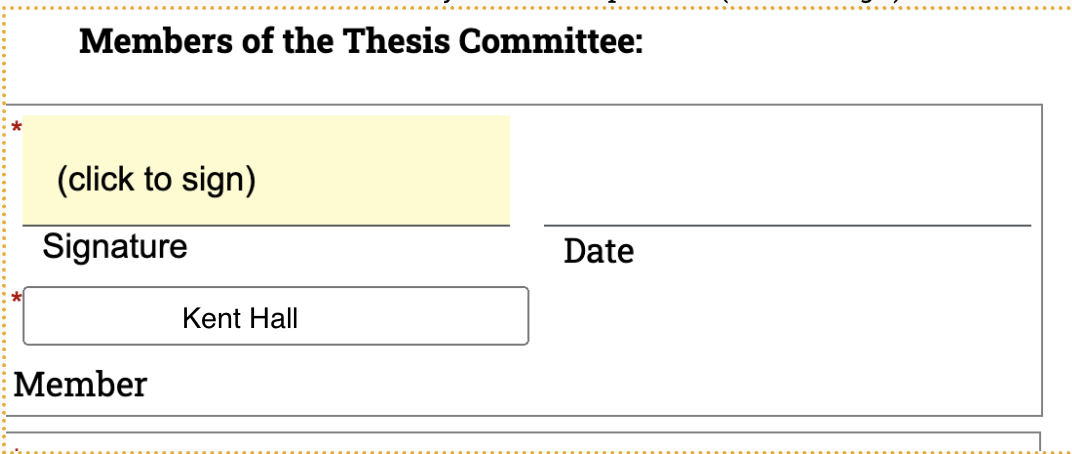
Enter your name exactly as it appears here.
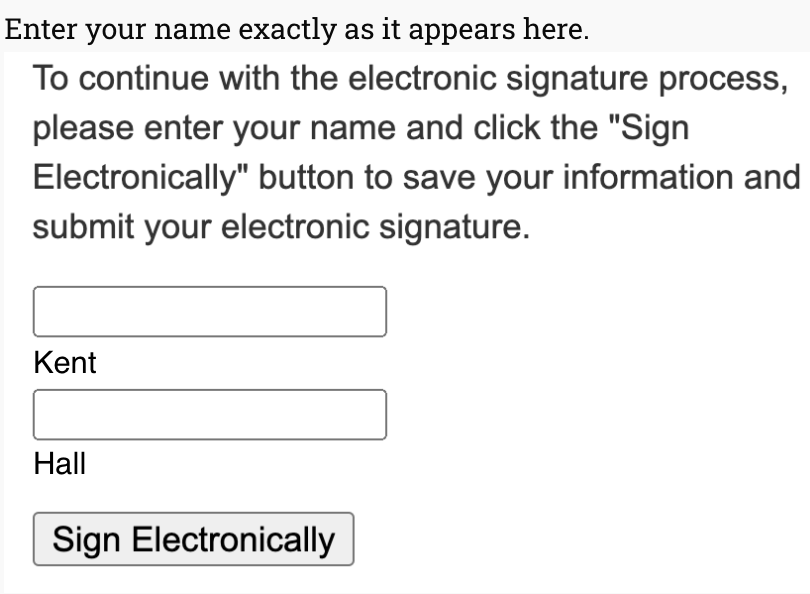
You will see your signature on the form. Click Next.
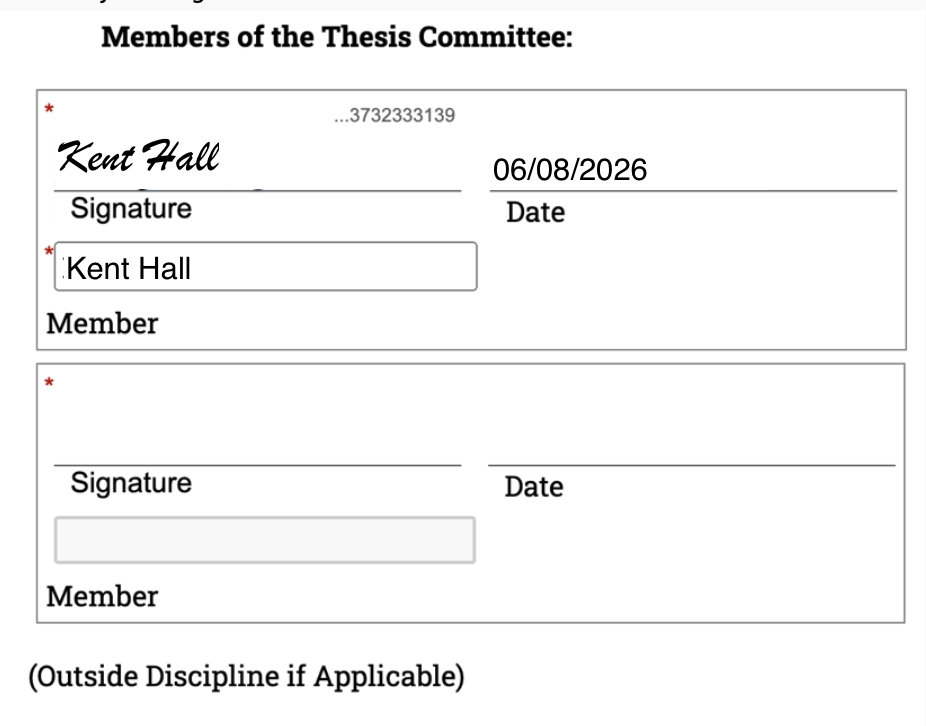
- No information needs to be entered on the next page click. Click Submit Form.

- The form will now go to the next person listed on the form. If you serve more than one role you will be asked to sign more than once and will get the email more than once.